Development Preparation
Before calling server-side APIs using the Java SDK, please ensure that you have obtained the Duli access provider ID (AppId), secret key (AppSecret), and enterprise code (EnterpriseId) through official channels, and that you have installed JDK and the Java SDK. This document describes the preparations for developing using the Java SDK.
AppID & AppSecret
When a third-party application initiates an API call, it must include the AccessToken parameter. The AccessToken parameter is obtained using the EnterpriseID, AppID, and AppSecret.
The specific steps are as follows:
- Log in to the admin backend as an organization administrator, navigate to the Open Platform -- Access Provider Management, and obtain the EnterpriseID, AppID, and AppSecret information;
- Obtain the AccessToken using the EnterpriseID, AppID, and AppSecret;
- Use the AccessToken to call relevant APIs.
Obtaining AppID & AppSecret
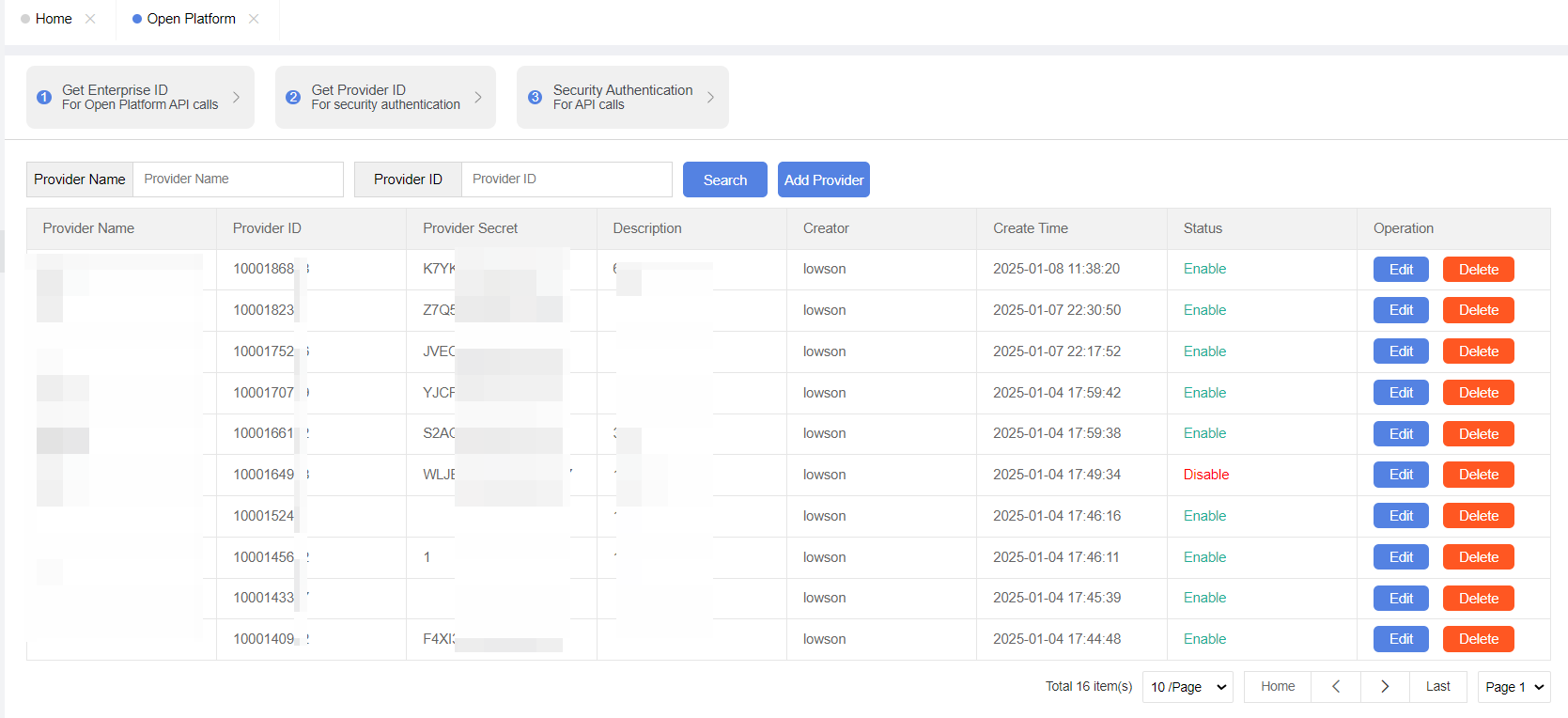
Log in to the management backend, then navigate to the Open Platform -- Access Provider Management to add a new access provider. After successful creation, you can find the corresponding application in the list. Clicking on it will pop up an information box displaying the AppID and AppSecret.
Development Environment
- Check Java Version
First, ensure that a suitable JDK version is installed locally. You can check by running the following command in your terminal or command prompt:
java -version
If the version displayed is 1.8 (also known as 8) or higher, the minimum requirement is met. If not installed or the version is lower, download and install the latest JDK. - Download and Install JDK
Visit the official website: Go to Oracle JDK or other open-source JDK providers like AdoptOpenJDK to download the version suitable for your operating system.
Choose the appropriate version: Select the latest stable version or a specific version (e.g., Java 11 LTS, Java 17 LTS) based on your needs. - Configure Environment Variables
After installation, configure environment variables so the system recognizes javac (compiler) and java (runtime) commands.
Windows:
• Right-click "This PC," select "Properties" -> "Advanced system settings" -> "Environment Variables."
• In "System Variables," find the Path variable, edit it, and add the JDK's bin directory path (e.g., C:\Program Files\Java\jdk-11.0.11\bin).
macOS/Linux:
• Edit /.bashrc, /.zshrc, or the corresponding shell configuration file, adding the following lines (assuming zsh and JDK installed at /Library/Java/JavaVirtualMachines/jdk-11.0.11.jdk/Contents/Home):
export JAVA_HOME=/Library/Java/JavaVirtualMachines/jdk-11.0.11.jdk/Contents/Home
export PATH=$JAVA_HOME/bin:$PATH
• Use source ~/.zshrc to apply changes. - Verify Installation
Open a new terminal window or command prompt and run java -version and javac -version again to verify successful installation and the correct version in use.
Installing Java SDK
- Download JAR Package
Ensure you have downloaded the required Java SDK JAR package from a reliable source. - Install JAR Package
(To local Maven repository, if using Maven for project management):
Open a command-line tool (e.g., cmd or PowerShell).
Use the mvn install:install-file command to install the JAR package into your local Maven repository. Provide the file path of the JAR and the path of the POM file (if available). Example:
mvn install:install-file -Dfile=path/to/your-sdk.jar -DpomFile=path/to/your-sdk.pom.xml
If no POM file is available, you may need to create one manually or omit the -DpomFile parameter (not recommended as the POM file contains dependency and version information). - Add to Project Build Path
(If not using Maven or need to manually add the JAR package):
Copy the downloaded JAR package to your Java project's libs directory (or any chosen directory).
In your IDE (e.g., Eclipse, IntelliJ IDEA), add the JAR package to the project's build path. Specific steps depend on your IDE but can usually be done through project properties or project structure settings.
Calling Server-side APIs
This document explains how to build an API Client, construct API requests, and successfully call server-side interfaces using the Java SDK. You can refer to the Duli Open Platform API Call Guide in conjunction with this document to complete the calls.
Building the API Client
Before calling Duli Open Platform interfaces through the SDK, you need to create an API Client in your code first.
Example :
Client client = Client.newBuilder("$enterpriseId","$appId","$appSecret").build();
Constructing API Requests
After creating an API Client, you can start calling the Duli Open Platform. The SDK uses client.serviceName.methodName to locate specific API methods.
The following code example shows how you can call the getUser method of the user service through the client to obtain user information.
import com.ddm.openplate.client.Client;
import com.ddm.openplate.service.user.v1.rep.GetUserRep;
import com.ddm.openplate.service.user.v1.req.GetUserReq;
import com.ddm.openplate.util.JacksonTools;


public class App {
    public static void main(String[] args) throws Exception {
        String enterpriseId = "604300";//Example of Enterprise ID
        String appId = "1000167027";//Example of Access Provider ID
        String appSecret = "YZFG5PLKC95Y0F9F";//Example of Access Provider Secret Key
        // Construct client
        Client client = Client.newBuilder(enterpriseId,appId,appSecret).build();
        //Construct request body
        String type = "id";//Example of query type
        String query = "10000001";//Query Condition Example
        GetUserReq request = GetUserReq.newBuilder()
                .type(type)
                .query(query)
                .build();
        //Initiate request
        GetUserRep response = client.userService().getUser(request);
        // Handle server errors
        if (!"1".equals(response.getCode())) {
            System.out.println(String.format("code:%s,msg:%s,createTime:%s"
                    , response.getCode(), response.getMsg(), response.getCreateTime()));
            return;
        }
        // Process business data
        System.out.println(JacksonTools.obj2Json(response.getData()));
    }
}
You can also construct custom requests to call the corresponding API interfaces, as shown in the following code example:
import com.ddm.openplate.client.Client;
import com.ddm.openplate.common.BaseResponse;
import com.ddm.openplate.common.RequestOption;
import com.ddm.openplate.common.constants.ModelConstant;
import com.ddm.openplate.common.constants.RequestType;
import com.ddm.openplate.util.JacksonTools;

import java.util.HashMap;
import java.util.Map;


public class App {
    public static void main(String[] args) throws Exception {
        String enterpriseId = "604300";//Example of Enterprise ID
        String appId = "1000167027";//Example of Access Provider ID
        String appSecret = "YZFG5PLKC95Y0F9F";//Example of Access Provider Secret Key
        // Construct client
        Client client = Client.newBuilder(enterpriseId,appId,appSecret).build();
        String model = ModelConstant.USER;//Module Example: User Module
        //Construct request body
        RequestOption request = new RequestOption();
        Map requestMap = new HashMap<>();
        requestMap.put("type","id");//Example of query type
        requestMap.put("query","1000001");//Query Condition Example
        request.setRequestType(RequestType.GET);//Set Request Type
        request.setRequestBody(requestMap);
        //Initiate request
        BaseResponse response = client.service(model).doAction("/get_user",request);
        //Based on the API documentation endpoint
        // Handle server errors
        if (!"1".equals(response.getCode())) {
            System.out.println(String.format("code:%s,msg:%s,createTime:%s" , response.getCode(), response.getMsg(), response.getCreateTime()));
            return;
        }
        // Handle server errors
        System.out.println(JacksonTools.obj2Json(response.getData()));
    }
}
Executing Code
After completing the above program, you can execute the code to call the API for obtaining user information. When the request is successful, it is expected to return the following data; when the request fails, it will return an error code and error message. For details, refer to the Duli Open Platform API documentation.
{
    "code": "1",
    "data": {
        "account_id": "10000001",
        "account": "example01",
        "nick_name": "Name1",
        "phone": "13000000001",
        "status": 1,
        "is_online": 1,
        "mobile_prefix": "86",
        "avatar": "/chat/avatar/test-1734074129056.jpeg",
        "gender": 1,
        "extenal": [
            {
                "org": "Examplex",
                "org_id": "100000",
                "email": "1111@qq.com",
                "dept_list": [
                    {
                        "dept_name": "ExampleD",
                        "dept_id": 1
                    }
                ]
            }
        ]
    },
    "message": "ok",
    "createTime": "2025-01-03 11:02:54"
}
Example Code
Update Group Name
import com.ddm.openplate.client.Client;
import com.ddm.openplate.service.group.v1.rep.UpdateGroupNameRep;
import com.ddm.openplate.service.group.v1.req.UpdateGroupNameReq;
import com.ddm.openplate.util.JacksonTools;

public class Sample {
    public static UpdateGroupNameRep updateGroupName(Client client) throws Exception {
        //Construct request body
        String groupId = "$group_id";//group id
        UpdateGroupNameReq request = UpdateGroupNameReq.newBuilder()
                .groupId(groupId)//Required
                .build();
        //Modify Group Name
        UpdateGroupNameRep response = client.groupService().updateGroupName(request);
        //Handle server errors
        if (!"1".equals(response.getCode())){
            System.out.println(String.format("code:%s,msg:%s,createTime:%s"
                    , response.getCode(), response.getMsg(), response.getCreateTime()));
            return response;
        }
        System.out.println(JacksonTools.obj2Json(response.getData()));
        return response;
    }
}
Create User and Change Status
import com.ddm.openplate.client.Client;
import com.ddm.openplate.service.user.v1.rep.CreateUserRep;
import com.ddm.openplate.service.user.v1.req.CreateUserReq;
import com.ddm.openplate.util.JacksonTools;

public class Sample {

    public static CreateUserRep createUser(Client client) throws Exception {
        //Construct request body
        String orgId = "100000";//Organization ID Example
        String account = "abcd123456";//account ID
        String nickName = "TestA";//nickname
        String phone = "13300000000";//phone number
        CreateUserReq request = CreateUserReq.newBuilder()
                .orgId(orgId) //Required
                .account(account)
                .nickName(nickName)
                .phone(phone)
                .build();
        //Create User
        CreateUserRep response = client.userService().createUser(request);
        //Handle server errors
        if (!"1".equals(response.getCode())){
            System.out.println(String.format("code:%s,msg:%s,createTime:%s"
                    , response.getCode(), response.getMsg(), response.getCreateTime()));
            return response;
        }
        System.out.println(JacksonTools.obj2Json(response.getData()));
        return response;
    }

}


